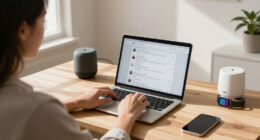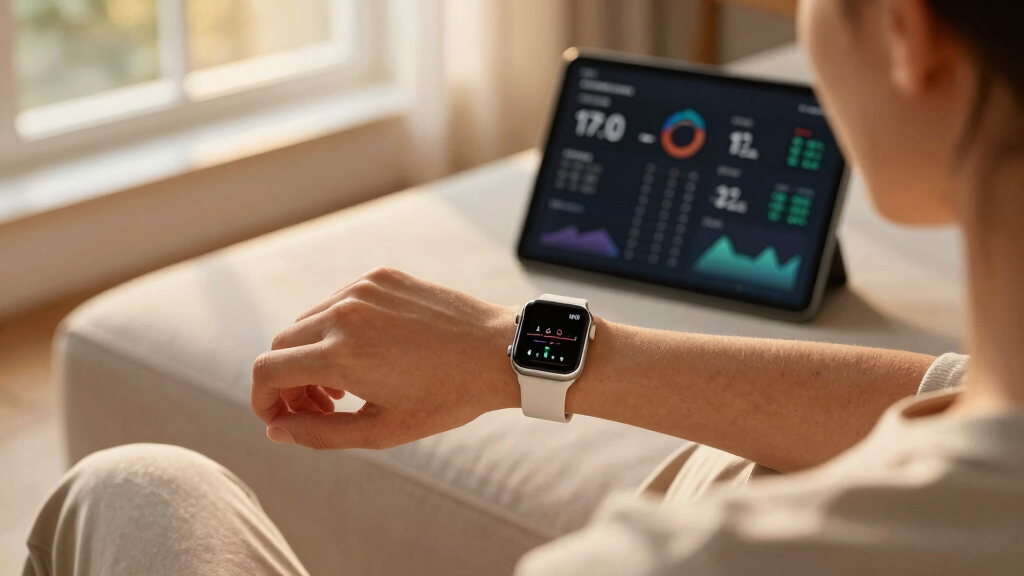
This guide helps beginners install and use common at-home wellness devices such as smart scales, fitness trackers, meditation apps, and sleep monitors. It covers setup, calibration, and troubleshooting to ensure accurate data and effective use. Perfect for anyone new to wellness technology aiming to improve health routines efficiently.
Difficulty: Beginner | Time: 30-60 minutes
What You’ll Need
Tools & Materials:
- Smart device (scale, tracker, monitor)
- Smartphone or tablet
- Wi-Fi or Bluetooth connection
- Charging cables if needed
Knowledge:
- Basic familiarity with smartphone apps
- Understanding of device-specific instructions
Ensure your devices are compatible with your smartphone or tablet before purchase. Fully charge devices before setup to avoid interruptions. Have your Wi-Fi password ready if connecting via Wi-Fi.
As an affiliate, we earn on qualifying purchases.
Before You Start
Ensure your Wi-Fi network is active and your smartphone or tablet is updated with the latest software. Read the device manuals for specific compatibility notes. Place your devices in their intended locations, such as on a flat surface or bedside table, before beginning setup.
As an affiliate, we earn on qualifying purchases.
Step-by-Step Instructions
Step 1: Unpack and prepare your devices
Remove your wellness devices from their packaging. Check that all accessories, such as charging cables or batteries, are included. Place each device in its designated location, such as on a flat surface for scales or wrist for trackers.
Tip: Charge devices fully before setup if batteries are included or if batteries need installation. Keep manuals handy for reference.
Check: All devices are unboxed, charged or with fresh batteries, and correctly positioned for setup.
Step 2: Download the corresponding app
Install the device’s official app from your smartphone’s app store. Search for the device brand (e.g., Fitbit, Withings, Muse) and download the latest version.
Tip: Use official apps only to ensure security and compatibility. Check app reviews if unsure.
Check: The app installs successfully and opens without errors.
Step 3: Create or log into your account
Open the app, then follow prompts to create a new account or log in with existing credentials. Enter your email or username and password as directed.
Tip: Use a strong, unique password. Enable two-factor authentication if available for security.
Check: You are logged into your account and ready to connect devices.
Step 4: Pair or connect your device to the app
Follow the on-screen instructions within the app to add a new device. Enable Bluetooth or Wi-Fi on your smartphone, then select your device from the list and follow prompts to pair or connect.
Tip: Keep your device close to your smartphone during pairing. Restart your device if it doesn’t appear in the list.
Check: The device is connected and appears as active within the app.
Step 5: Calibrate or set up your device
If required, follow prompts to calibrate your device, such as entering personal details (height, weight) or performing a calibration step. Complete any initial setup steps suggested by the app.
Tip: Double-check entered data for accuracy to improve device readings.
Check: Device displays initial readings and is ready to record data.
Step 6: Test device functionality
Use your device as intended—stand on the scale, wear the tracker, or use the sleep monitor for a test run. Confirm data is syncing to the app.
Tip: Ensure your device is properly worn or placed and that Bluetooth or Wi-Fi remains active during testing.
Check: Data appears in the app after use, confirming proper operation.
As an affiliate, we earn on qualifying purchases.
Common Mistakes to Avoid
- Not fully charging devices before setup — Charge devices for at least the recommended time before initial use to prevent interruptions.
- Using unofficial or outdated apps — Download apps only from official app stores and ensure you have the latest version.
- Incorrect device placement or wearing — Follow manufacturer instructions for placement or wearing to ensure accurate readings.
- Skipping calibration steps — Complete all calibration prompts and input accurate personal data for reliable results.
As an affiliate, we earn on qualifying purchases.
Troubleshooting
Problem: Device not pairing with app
Solution: Restart your device and smartphone, ensure Bluetooth/Wi-Fi is enabled, and try re-pairing.
Problem: Data not syncing or updating
Solution: Check internet connection, restart the app, and ensure the device is within range.
Problem: Inconsistent readings
Solution: Ensure the device is placed or worn correctly, calibrate if needed, and use it consistently at the same time daily.
What Success Looks Like
All devices are correctly connected, data is syncing to the app, and initial readings appear accurate. The device responds properly during use, and data is visible within the app interface without errors.
Next Steps
Regularly sync your devices to keep data current. Follow manufacturer recommendations for maintenance or firmware updates. Use the data to inform health routines, or explore additional wellness devices for broader monitoring. Contact support if persistent issues occur.
Frequently Asked Questions
How often should I calibrate my device?
Follow the manufacturer’s instructions. Typically, calibration is needed during initial setup and periodically afterward, such as monthly or after device updates.
Can I use multiple wellness devices together?
Yes, many devices are compatible within the same app or ecosystem, but verify app compatibility and avoid conflicting device pairings.
What if my device stops syncing?
Ensure Bluetooth or Wi-Fi is active, restart your device and smartphone, and check for app or firmware updates. Re-pair the device if necessary.
Are these devices safe to use during sleep or exercise?
Most wellness devices are designed for regular use; consult the manufacturer’s guidelines for specific safety information related to sleep or exercise activities.