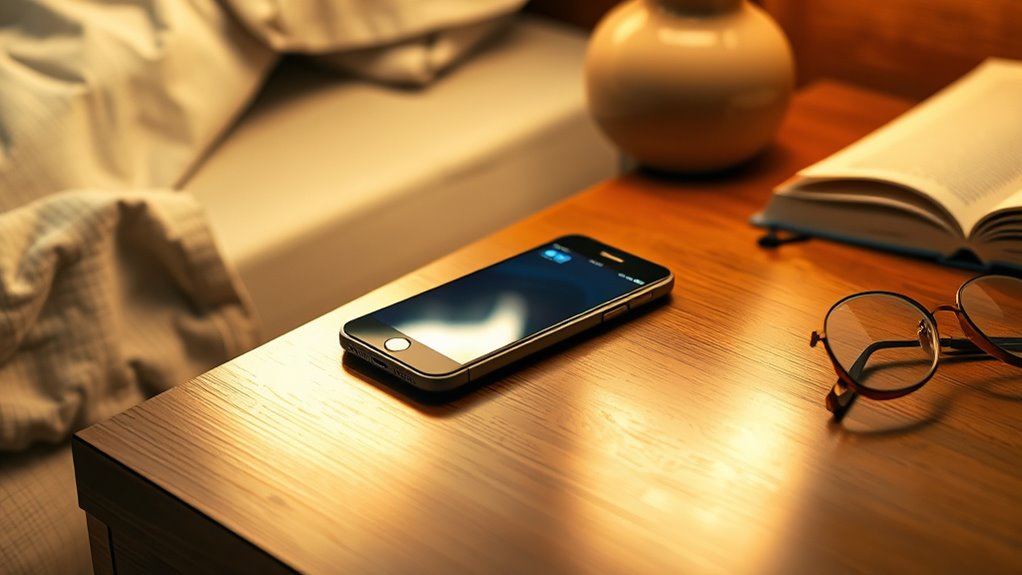

To improve your sleep, turn on Do Not Disturb mode and set a consistent sleep schedule. Lower your screen brightness or enable Night Mode to reduce blue light exposure. Disable or limit notifications and mute unnecessary apps to prevent disruptions. Check your alarm settings and volume levels to wake you gently. For even better rest, consider removing your phone from your bedside; exploring these options in detail will help you sleep soundly.

Get wellness gear delivered free — and shop member deals
- Fast, free delivery on millions of items
- Access to Prime Big Deal Days deals on October 6–7
- Prime Video, Amazon Music and more included
Key Takeaways
- Enable Do Not Disturb mode and silence non-essential notifications to prevent disruptions during sleep.
- Adjust screen brightness, enable blue light filters, and set shorter timeout durations to reduce eye strain and melatonin disruption.
- Ensure alarm settings are correct with a gentle volume and test the alarm before bed.
- Remove or store your phone away from the bedside to minimize temptation and blue light exposure.
- Manage notification preferences, disable unnecessary alerts, and restrict app permissions for a quiet, sleep-friendly environment.
Enable Do Not Disturb Mode

Enabling Do Not Disturb mode before bed helps you avoid interruptions from calls, messages, and notifications. When you activate it, silent notifications ensure you won’t be disturbed by pings or alerts, allowing for a peaceful night’s sleep. Many devices let you customize DND settings, so you can block all notifications or allow priority calls. You can also set scheduled responses, which automatically reply to messages, letting contacts know you’re resting. This feature prevents you from feeling the need to check your phone constantly, reducing sleep disruption. By turning on DND mode, you create a calm environment that encourages better sleep and minimizes the temptation to engage with your device late at night. It’s a simple step toward a healthier bedtime routine. Creating a calm environment can significantly improve your overall sleep quality and help you wake up feeling more refreshed. Additionally, adjusting screen brightness and blue light filters can further enhance your sleep environment by reducing eye strain and melatonin disruption, promoting better sleep hygiene. Implementing these settings is part of adopting modern sleep strategies that leverage technology for healthier habits. Incorporating energy-efficient devices into your nighttime routine can also support a more sustainable approach to technology use.
Set a Bedtime or Sleep Schedule

Setting a consistent bedtime or sleep schedule helps signal to your body that it’s time to wind down, making it easier to fall asleep and wake up feeling refreshed. Establishing regular sleep hours strengthens your sleep hygiene and supports your overall health. Incorporate calming bedtime routines, like reading or gentle stretches, to reinforce your schedule and prepare your mind for rest. When you stick to the same sleep and wake times every day, your body gets used to a routine, reducing sleep disruptions. Avoid late-night screen time or caffeine close to bedtime, as these can interfere with your schedule. By setting a clear sleep schedule, you train your body to recognize when it’s time to rest, improving both sleep quality and daytime alertness. Additionally, managing your bedtime environment, such as ensuring your bedroom is cool, dark, and quiet, can enhance sleep quality and help you maintain your schedule. Creating a consistent pre-sleep routine can also reduce stress, making it easier to fall asleep naturally. Incorporating relaxation techniques like deep breathing or meditation can further support your sleep routine and overall rest. Regularly reviewing and adjusting your sleep habits helps reinforce your sleep schedule, promoting better overall rest.
Adjust Screen Brightness and Timeout Settings

Adjusting your screen brightness and timeout settings can considerably improve your sleep quality by reducing exposure to harsh light before bed. Lower your screen brightness or enable automatic screen dimming to minimize eye strain and prevent bright light from disrupting your melatonin production. Additionally, set a shorter timeout duration so your phone’s screen turns off quickly when not in use. This timeout adjustment helps avoid prolonged exposure to light, especially if you tend to scroll or check notifications late at night. By making these tweaks, you create a more sleep-friendly environment that signals to your brain it’s time to wind down. Simple changes like dimming your screen and shortening the timeout can make a noticeable difference in how easily you fall asleep and stay asleep. Incorporating local automation features can further help by automatically adjusting these settings based on the time of day or your sleep schedule. Utilizing smart device settings can enhance this process by allowing your phone to adapt seamlessly to your nightly routine, further supporting healthy sleep habits. Moreover, reducing blue light emissions from your device can improve sleep quality by lessening the impact on melatonin production. Additionally, enabling night mode can further filter blue light and support your sleep cycle. Implementing proper screen calibration can also optimize the effectiveness of these adjustments for better sleep.
Activate Night Mode or Blue Light Filter

Since blue light can interfere with melatonin production and delay sleep, activating night mode or a blue light filter on your phone is a smart move before bed. By turning on the blue light filter, you reduce the amount of blue light emitted from your screen, making it easier for your body to wind down. Night mode adjusts your display to warmer tones, which can minimize eye strain and signal your brain that it’s time to relax. Most smartphones have easy settings to enable these features; you can usually find them in display or brightness options. Using night mode or a blue light filter consistently before bed supports a healthier sleep cycle and helps you fall asleep faster. Implementing these features is especially important for maintaining overall health and well-being. It’s a simple step that can considerably improve your overall sleep quality. Additionally, understanding screen brightness levels can further optimize your device’s settings for better comfort during nighttime use. Adjusting screen brightness to a lower level can help reduce eye fatigue and is recommended when using your device late at night. Being mindful of ambient lighting in your environment can also enhance the effectiveness of these settings and promote better sleep patterns. Moreover, proper device settings can help prevent unnecessary eye strain and fatigue during extended use.
Disable Notifications or Limit Alerts

While blue light filters help your eyes and melatonin production, notifications and alerts can still disrupt your sleep even after you’ve reduced screen brightness. To create a calm sleep environment, disable or limit alerts on your phone. This reduces interruptions and helps you relax using meditation techniques before bed. Silence notifications from social media, emails, and messaging apps. Consider setting your phone to “Do Not Disturb” mode during the night. You might also customize specific alerts so only essential calls come through. This minimizes distractions and helps your mind unwind. Managing notifications fosters a peaceful sleep environment, supporting better rest. Additionally, notification management can help prevent costly repairs by reducing the chance of accidental damage or unnecessary resets. Being mindful of environmental distractions ensures your space remains tranquil, which further enhances sleep quality. Creating a calm environment by limiting interruptions allows your body and mind to fully relax, improving overall sleep quality. Your sleep quality improves when your environment remains calm and notification-free.
Turn Off or Silence Unnecessary Apps

You should manage your notification settings to prevent unnecessary interruptions. Disabling app alerts and using Do Not Disturb can help you avoid distractions while winding down. This way, your phone won’t pull your attention away from relaxing before bed. Additionally, adjusting your notification preferences can ensure only essential alerts come through, supporting your goal of a calm and organized environment.
Manage Notification Settings
Managing your notification settings before bed can considerably improve your sleep quality. To do this, turn off or silence unnecessary app notifications to avoid disruptions. First, review your notification badges so only important alerts appear, reducing visual clutter. Next, check your app permissions and disable notifications from apps that don’t need to alert you at night. Consider setting your phone to “Do Not Disturb” mode or customizing it for bedtime hours. You can also mute specific apps or silence notifications from social media and messaging apps. Finally, disable pop-up alerts that can wake you or distract you from falling asleep. Taking these steps helps create a calmer environment, minimizes interruptions, and promotes better sleep hygiene.
Disable App Alerts
Disabling app alerts guarantees that unnecessary notifications won’t disturb your sleep. By turning off alerts from apps you don’t need during the night, you practice mindful app usage and reduce potential disruptions. Notification management is key to creating a peaceful environment, so review your app settings and silence or disable alerts from social media, news, or game apps. This helps prevent your phone from lighting up or making sounds, allowing you to unwind and fall asleep more easily. You don’t need to delete apps—just restrict their notifications to only the essentials. Taking these steps ensures your phone won’t become a source of distraction or stress during the night, supporting better sleep hygiene and a more restful night.
Use Do Not Disturb
Using the Do Not Disturb feature is an effective way to block out notifications from unnecessary apps during bedtime. It silences notifications, preventing disruptions and helping you sleep better. You can customize this setting to allow silent notifications from essential contacts or apps, ensuring you’re not completely cut off. Set custom alarms to wake you without relying on loud ringtones, maintaining a peaceful sleep environment. Enabling Do Not Disturb automatically silences alerts during specific hours or when you’re in bed. This prevents notifications from lighting up your screen or making sounds. Remember to review app permissions, so only necessary notifications come through. Using this feature streamlines your bedtime routine, minimizes distractions, and promotes restful sleep with minimal interruption.
- Silence notifications from non-essential apps
- Enable quiet hours or scheduled Do Not Disturb
- Allow silent notifications for critical contacts
- Set custom alarms for gentle wake-ups
- Manage app permissions for better control
Enable Alarm Settings and Check Volume Levels

Before you settle in for the night, make sure your alarm is properly set so you wake up on time, and double-check that your volume levels are comfortable. Start by opening your alarm app and confirming the alarm time is correct. Adjust the alarm volume to ensure it’s loud enough to wake you without being jarring, especially if you sleep lightly. Take a moment to review your ringtone selection—choose a sound that’s effective but not overly disruptive. Some people prefer gentle tunes, while others need a more alerting tone. Test the alarm to verify the volume and ringtone sound. Doing this guarantees you won’t miss your wake-up call and helps you start your day smoothly, free from unnecessary stress or confusion.
Remove or Store Your Phone Away From the Bedside

Placing your phone away from the bedside can substantially improve your sleep quality. Keeping your device out of reach reduces the temptation to check notifications, supporting a digital detox before bed. It also creates a better sleep environment by minimizing blue light exposure, which can interfere with melatonin production. Store your phone in a different room or in a drawer to avoid disruptions. This simple step encourages you to wind down without distractions and promotes healthier sleep habits.
- Use a dedicated charging station away from your bed
- Turn off notifications to prevent interruptions
- Set a designated spot for your phone overnight
- Avoid bringing your phone into the bedroom altogether
- Create a calming sleep environment free of electronic devices
Frequently Asked Questions
How Does Blue Light Impact Sleep Quality?
Blue light from your screen time suppresses melatonin production, making it harder for you to fall asleep. This melatonin suppression reduces sleep quality and disrupts your natural sleep cycle. To improve your sleep, you should limit screen exposure before bed and use features like night mode or blue light filters. By doing so, you help your body produce melatonin naturally, making it easier to fall asleep and wake refreshed.
Can Sleep Apps Improve My Bedtime Routine?
Sleep apps can improve your bedtime routine, but only if you use them wisely. They often include features like phone meditation guides and sleep tracking, which help you relax and understand your sleep patterns. Research suggests that mindful phone meditation before bed reduces stress, while sleep tracking offers insights to improve sleep quality. However, avoid over-reliance on screens or notifications — set your app to do its job quietly.
What Are the Best Ways to Reduce Phone Distractions?
To reduce phone distractions, you should prioritize a digital detox by turning off notifications and setting your device to Do Not Disturb mode. Keep your phone out of reach or in another room to minimize temptation. Practice distraction management by establishing a bedtime routine that doesn’t involve screens, helping your mind relax. These steps help create a peaceful environment, ensuring better sleep and less interference from your phone.
Should I Use a Separate Alarm Clock Instead of My Phone?
You should consider using alarm clock alternatives instead of your phone to promote phone-free mornings. An independent alarm clock helps you avoid the temptation to check notifications first thing, reducing distractions and improving your sleep quality. Plus, it encourages healthier habits and keeps your phone out of reach during the night. Making this switch can lead to more restful sleep and a more focused start to your day, free from constant notifications.
How Can I Prevent My Phone From Vibrating Overnight?
To prevent your phone from vibrating overnight and avoid disturbances, turn off the vibration feature in your settings. You can do this by proceeding to your phone’s sound or notifications menu and disabling vibration for calls, messages, and alerts. Alternatively, switch your phone to silent mode or do not disturb mode, which silences vibrations and sounds, ensuring a peaceful sleep without any overnight disturbances caused by phone vibrations.
Conclusion
By adjusting these settings, you can enjoy a more restful night’s sleep without missing important alarms or messages. You might worry about missing out or waking up late, but with alarms and notifications set properly, you’ll stay safe and connected. Putting your phone away from the bed also reduces temptation and improves sleep quality. Give these tips a try—you’ll wake up feeling refreshed and ready for the day ahead, all while protecting your sleep health.
Halloween Picks
halloween
As an affiliate, we earn on qualifying purchases.